FeedbackPulse Engagement Surveys
An Engagement Survey measures how Employees feel about their work, management, and company culture. It collects structured responses across multiple engagement dimensions.
How Engagement Surveys work
Section titled “How Engagement Surveys work”- An Admin or Manager creates a Survey with selected questions or a Template
- The Survey is sent to the target audience (entire Organization, specific Departments, or individual Users)
- Respondents complete the Survey within the survey window
- Results are aggregated in Analytics with scores per engagement dimension
Entity relationships
Section titled “Entity relationships”- An Engagement Survey belongs to one Organization.
- An Engagement Survey targets one or more Users or Departments as Respondents.
- Each Respondent submits one response per Survey.
- An Engagement Survey uses one Template (built-in or custom).
- Results are aggregated across a broad default set of engagement dimensions covering areas like leadership, management, recognition, collaboration, and growth.
Built-in templates
Section titled “Built-in templates”| Template | Questions | Measures |
|---|---|---|
| Annual Employee Engagement | 8 questions | Role clarity, tools and resources, growth opportunities, recognition, leadership confidence, and belonging |
| Leadership Effectiveness | 6 questions | Manager support, goal clarity, feedback quality, trust, and development support |
| 30-Day Onboarding Feedback | 6 questions | Role clarity, tools and resources, onboarding process, and team welcome for new hires |
| Exit Interview | 5 questions | Reasons for leaving and improvement suggestions |
FeedbackPulse also includes built-in Weekly Pulse Check and Employee Net Promoter Score templates. See Pulse Surveys and Survey Results & eNPS Benchmarks.
Most Templates use a mix of Likert scale (1-5) and open-text questions. The Exit Interview template also includes a Yes/No question.
How to create an Engagement Survey
Section titled “How to create an Engagement Survey”- Go to Surveys > Create New Survey
- Choose a Template or build custom questions
- Select your audience (Organization, Departments, or individual Users)
- Set anonymity preference (Anonymous or Named)
- Set the survey window (start and end dates)
- Click Launch
Understanding results
Section titled “Understanding results”Results appear in the Analytics dashboard:
| Metric | What it shows |
|---|---|
| Overall engagement score | Single number (1-5) aggregated across all questions |
| Dimension scores | Scores per engagement dimension (Leadership, Management, Recognition, and more) |
| Trend lines | How scores have changed across survey periods |
| Question insights (including eNPS) | Per-question totals and breakdowns; eNPS cards include benchmark and historical comparison markers |
| Open-text responses | Anonymized free-form feedback |
| Department breakdowns | Scores per Department (requires minimum 3 responses per Department) |
If your Engagement Survey includes eNPS questions, use Survey Results & eNPS Benchmarks to interpret score zones, industry/size medians, and vs previous or vs ~1 year ago markers correctly.
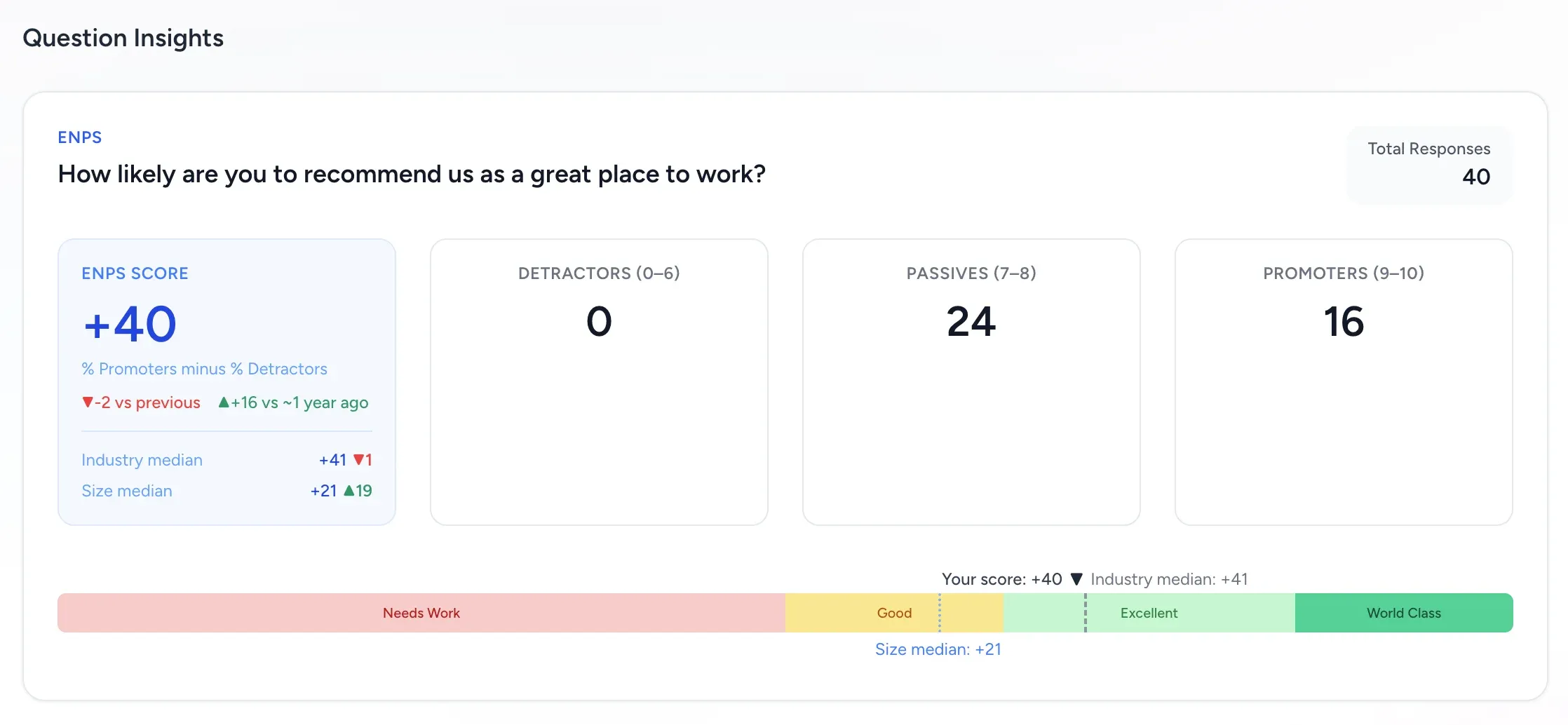
Engagement context: use this view to combine benchmark position with prior-period markers before prioritizing organization-level action themes.
Rules and constraints
Section titled “Rules and constraints”- Department-level breakdowns require a minimum of 3 responses per Department. This protects individual anonymity.
- Anonymous Survey responses cannot be traced back to individuals, not even by Admins.
- Open-text responses in anonymous Surveys are never attributed to individuals.
- The survey window just needs an end date that is after the start date. There is no fixed minimum window length.
- Engagement Surveys do not require a Manager reporting structure (unlike Performance Reviews).
Frequently asked questions
Section titled “Frequently asked questions”Q: What is the difference between an Engagement Survey and a Pulse Survey? A: An Engagement Survey is comprehensive (15-30 questions, quarterly). A Pulse Survey is short (3-5 questions, weekly/biweekly). Engagement Surveys measure broad sentiment; Pulse Surveys track specific indicators over time. See Pulse Surveys.
Q: Can I customize which engagement dimensions are measured? A: Yes. When building a custom Template, you assign each question to a dimension. You can use the built-in dimensions or create your own.
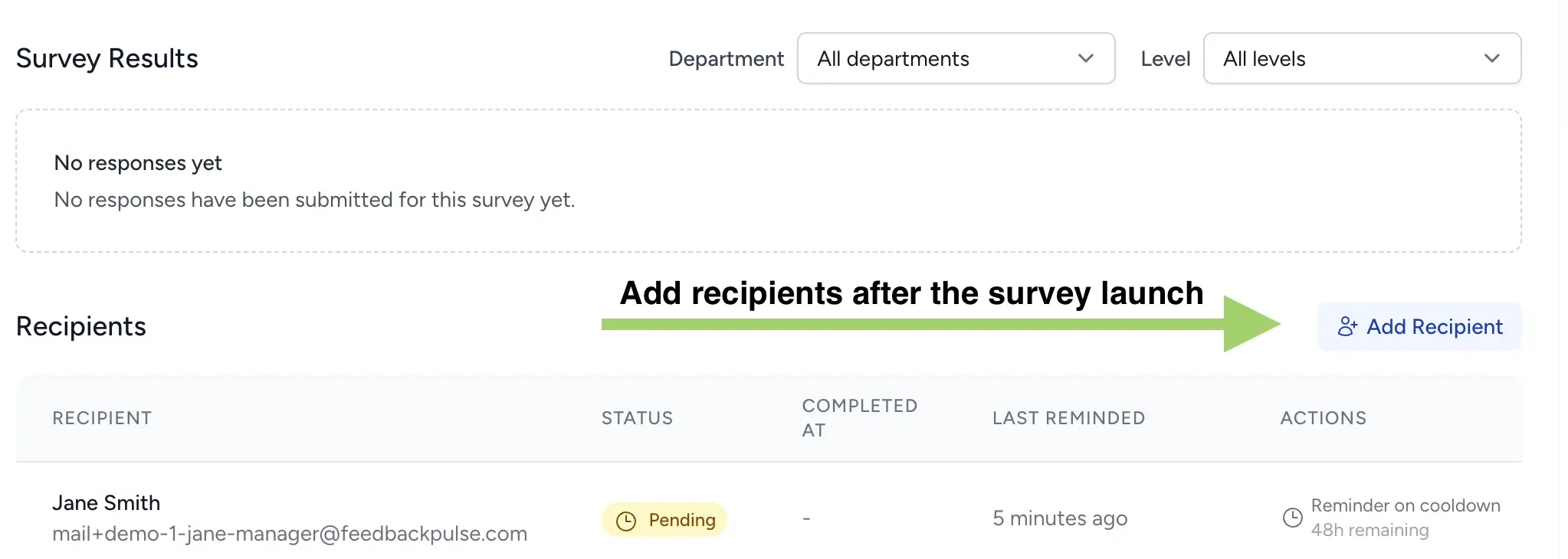
Q: Can I add someone to a survey that has already started? A: Yes. Open the active Survey and scroll to the Recipients section. Click the Add Recipient button, select the employee from the list, and submit. The new Recipient receives an invitation email immediately and can respond until the survey window closes.
Q: Why do I not see department-level results? A: Department breakdowns require at least 3 responses per Department. If a Department has fewer than 3 respondents, their results are included in the Organization total but not shown separately.